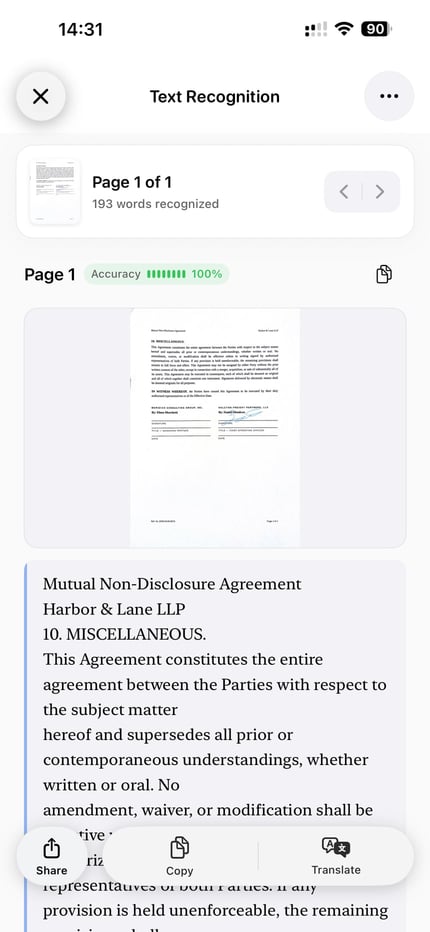
Review the OCR text
Check names, numbers, dates, and important wording against the scanned page.
Updated:
Add recognized text to a scanned PDF so a compatible reader can find words and copy passages. Export the text layer with the file, then test the saved PDF.

Free to download. Apple shows current trial eligibility and plan access before confirmation. See pricing details.
A searchable PDF combines a page image with an embedded OCR text layer. The image displays the scan; a compatible reader uses the recognized text for search and selection. If your PDF already contains usable text, you may not need to run OCR again.
Check names, numbers, dates, and important wording against the scanned page.
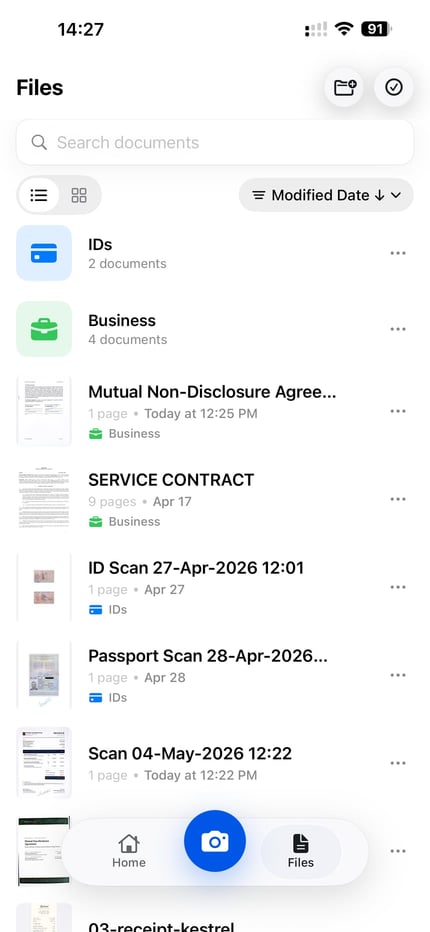
Library search and PDF search are separate. Verify the exported file in a PDF reader even if ScanLens already finds the document.
Use the reader’s Find action inside the open PDF, rather than searching filenames in Files. Choose a clear, distinctive word from the page, then try selecting and copying a short sentence.
Check the copied text against the scan, especially names, dates, and reference numbers. A successful search alone does not prove the PDF has an embedded layer: some readers recognize images themselves. For a stronger check, use a reader that searches embedded PDF text with automatic image recognition disabled, where available.
If your task is to locate a document rather than a word within it, see finding scanned documents on iPhone.
No words are found: check that you opened the new export and that the OCR layer option was enabled. Try another reader with embedded-text search. A missing result by itself does not prove the file is image-only.
Only some words are missed: compare the recognized text with the page. Blur, handwriting, an unsuitable recognition language, line breaks, and similar characters such as O/0 can affect matches. Try a shorter word and improve the scan before exporting again. See scan quality fixes.
Text copies in the wrong order: columns and tables may not copy as they appear. Review the extracted passage before reusing it. The OCR guide covers reviewing recognized text and supported languages.
The exported file displays a page image with invisible text added for search. Export can re-encode that image, so compare small print and page edges with the original. Selection highlights may not align exactly with every printed word.
Moving or attaching the PDF normally carries its embedded text with it. Sending a screenshot or exporting page images does not preserve that PDF text layer. After conversion, compression, or other processing, reopen the final file and repeat the search test.
ScanLens can reuse existing OCR blocks. If export needs to recognize a page, it currently runs English recognition. The separate text-recognition tool supports 14 languages, but that does not guarantee the exported PDF will search every language correctly. Test words in the saved file.
The OCR layer provides recognized text for search and copying; it does not turn the page image into editable paragraphs. For text you want to rewrite, extract and review it, then paste it into a document editor.
A searchable PDF can be larger than the same image-only scan because it also stores recognized text and its position on the page. The exact difference varies by document, page count, image settings, recognized text, and export options.
Yes. OCR recognition and searchable PDF creation run on the iPhone without uploading the document to ScanLens for processing. A file leaves the selected storage location when you share it, back it up, or export it to a cloud service.
Searchable PDF export belongs to the paid feature set — the pricing page lists the plans. Worth knowing what is free anyway: recognition runs on your scans in the background, so searching inside your own library already works without unlocking anything. The paid part is embedding that text layer into a file you send elsewhere, so the recipient can search it too.
Add an OCR text layer on iPhone, check the recognised words, and use Find in a PDF reader that supports the layer.