You receive a contract via email. The old way: print it, sign it, scan it, email it back. This wastes paper, requires a printer and scanner, and takes far longer than it should. If you're away from your desk? Forget it—you'd need to find a print shop or wait until you're home.
E-signatures eliminate this friction entirely. Open the PDF on your iPhone, add your signature with your finger or Apple Pencil, and send it back—all in under a minute. No printer. No scanner. No paper. Just tap, sign, send.
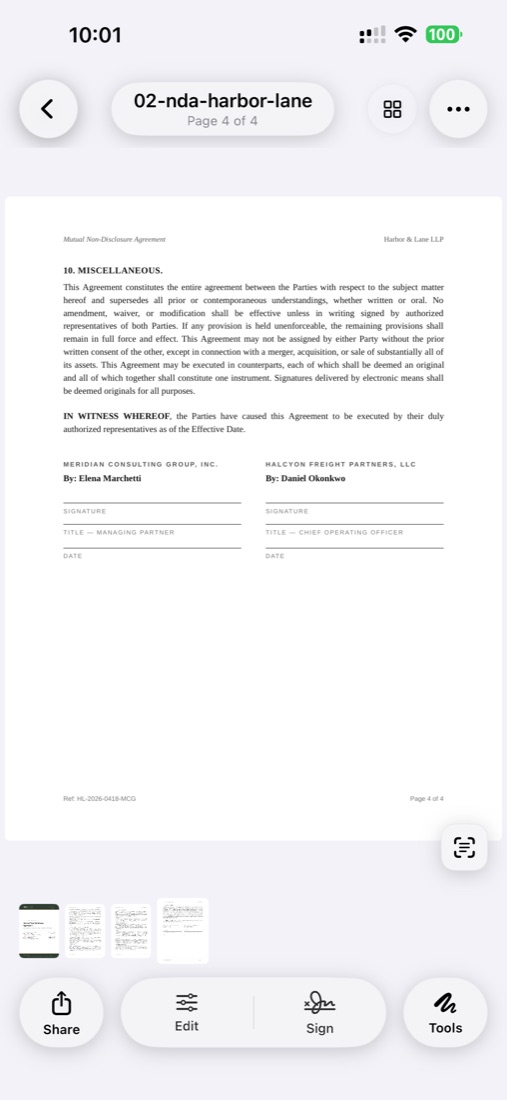
Open the PDF in ScanLens—directly from email, Files, or your cloud storage. The document loads with full zoom and scroll capability so you can review every detail before signing.
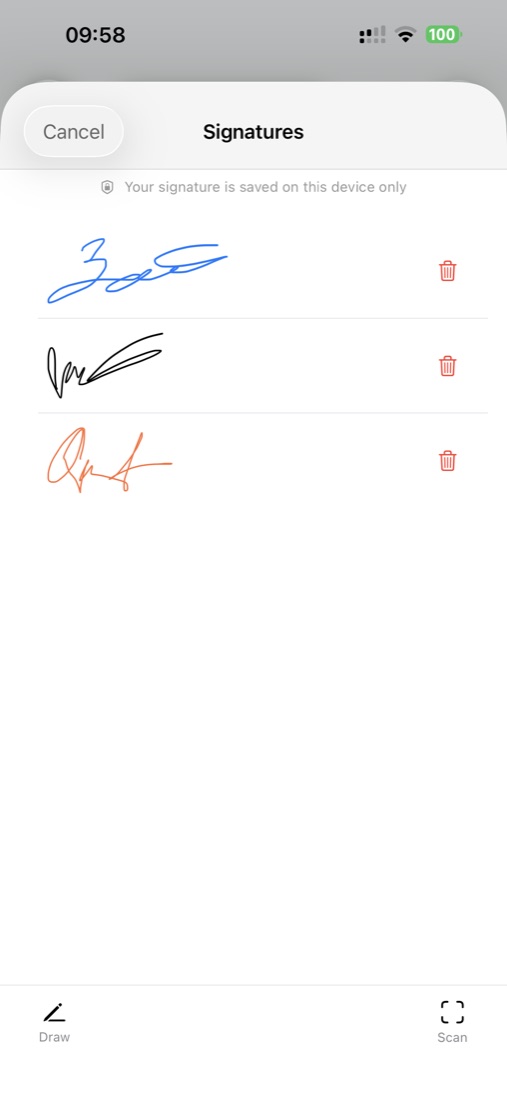
Select the signature tool from the annotation toolbar. If you've saved a signature before, it appears ready to place. Otherwise, you'll create a new one.
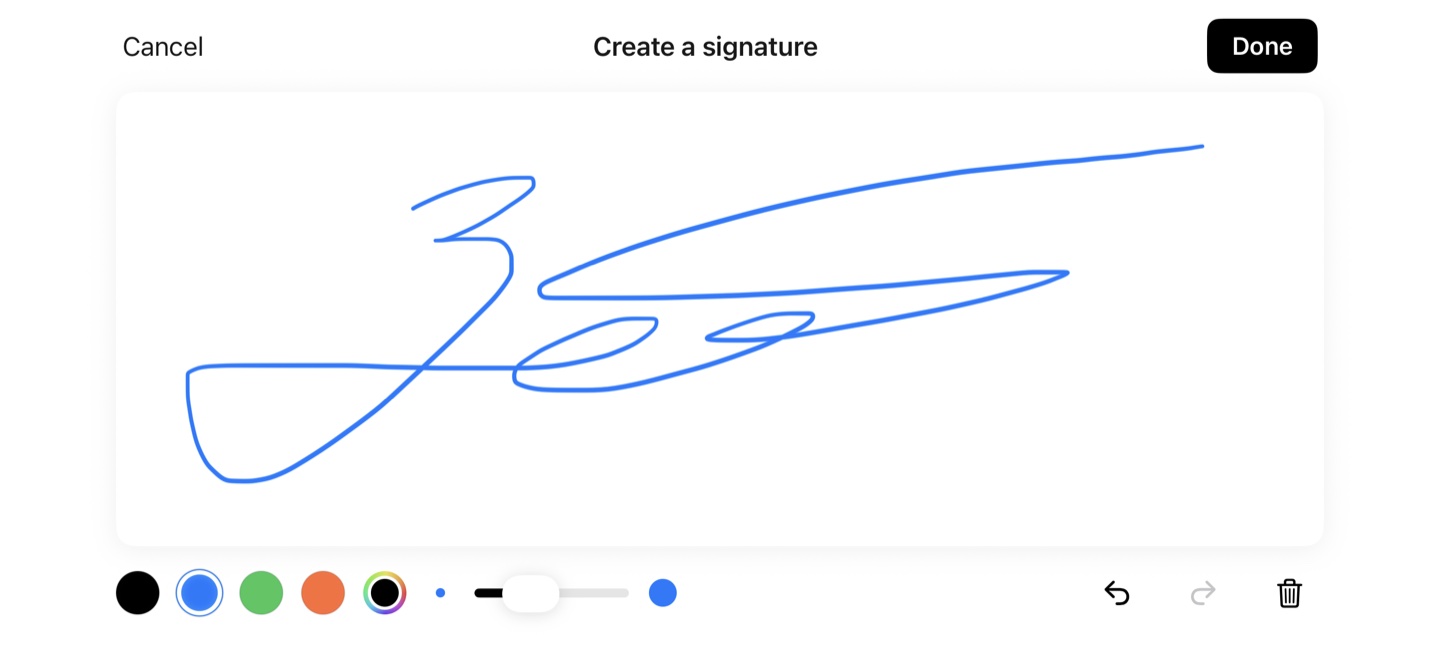
Use your finger to sign on the touchscreen. For more precision, use Apple Pencil. Take your time—you can clear and retry until it looks right. ScanLens captures the natural flow of your handwriting.
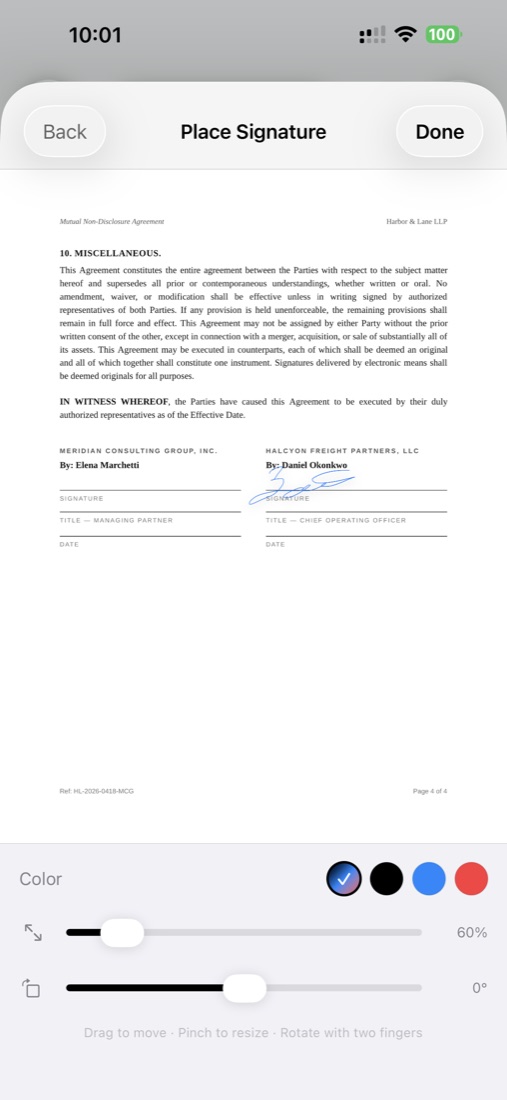
Place your signature on the signature line. Pinch to resize and drag to position exactly where needed. The signature maintains quality at any size.
Many documents require dates and initials alongside the main signature. Add these annotations wherever needed—ScanLens supports text, date stamps, and initial marks.
Save the signed document and share via email, AirDrop, or upload directly to cloud storage. The PDF embeds your signature as part of the document for secure delivery.
Yes. Electronic signatures carry the same legal weight as handwritten signatures for the vast majority of documents in most jurisdictions worldwide. Key legislation establishing e-signature validity:
The Electronic Signatures in Global and National Commerce Act (2000) gives e-signatures the same legal status as handwritten signatures for interstate and foreign commerce. State-level UETA (Uniform Electronic Transactions Act) laws provide additional backing in 47 states.
The eIDAS Regulation (2014) establishes a legal framework for electronic signatures across all EU member states. Simple electronic signatures (like those created on iPhone) are legally valid for most transactions, with higher-security "qualified" signatures for sensitive documents.
Countries including Canada, Australia, UK, Japan, China, India, and Brazil have enacted e-signature laws. Most follow similar principles: electronic signatures are valid if the signer intended to sign and the signature can be associated with the document.
Some documents still require traditional signatures in many jurisdictions:
For most everyday documents—contracts, agreements, consent forms, authorizations—e-signatures are fully accepted and legally enforceable.
Employment contracts, NDAs, vendor agreements, freelance contracts—sign and return from anywhere. No more waiting to get to a printer. Close deals faster and keep business moving.
Patient intake forms, consent forms, and insurance authorizations. Complete paperwork before your appointment instead of filling out forms in the waiting room. Healthcare providers can send forms digitally and receive signed versions instantly.
Rental applications, lease agreements (many states allow e-signatures), and property disclosures. Real estate transactions move faster when signatures don't require in-person meetings or mail delays.
Field trip permissions, enrollment forms, report card acknowledgments. Parents can sign and return forms the same day instead of hoping the paper makes it home and back.
Offer letters, tax forms, policy acknowledgments, expense reports. HR teams can onboard remote employees without shipping documents back and forth.
When first drawing your signature, find a clean surface and take your time. Use Apple Pencil if you have one—it captures more natural stroke dynamics. A clean, deliberate signature looks more professional than a hasty scribble.
Create your signature once and save it. This ensures consistency across all your signed documents and saves time. You can create multiple saved signatures—perhaps a formal version and a casual initial.
Zoom in on signature lines for precise placement. A signature that's clearly on the intended line looks more professional than one that's oddly positioned or overlapping other text.
Scroll through the entire document after signing. Make sure all required signatures, dates, and initials are in place. Missing a signature on page 5 of 10 means starting the process over.
Yes, e-signatures are legally binding in most countries under laws like the US ESIGN Act (2000) and EU eIDAS Regulation (2014). Electronic signatures have the same legal weight as handwritten signatures for most documents. Some exceptions apply—wills, certain real estate documents, and court orders may require traditional signatures in some jurisdictions.
In ScanLens, open a PDF and tap the signature tool. Draw your signature using your finger on the touchscreen or Apple Pencil for more precision. Take your time to create a clean signature, then save it for reuse on future documents. You can create multiple saved signatures for different purposes.
Absolutely. With ScanLens, you receive a PDF, add your signature directly on screen, and send it back—all without printing a single page. This saves time, paper, and eliminates the need for a scanner to re-digitize signed documents. Sign from anywhere, anytime.
Yes, ScanLens supports adding dates, initials, and text annotations alongside signatures. You can position these elements anywhere on the document, making it easy to complete forms that require multiple sign-off points on different pages.
Saved signatures are stored locally on your iPhone using iOS's secure enclave technology. They're encrypted and protected by your device passcode and Face ID/Touch ID. Signatures are never uploaded to external servers without your explicit action to share a signed document.