Use one intake folder, a small set of durable categories, filenames that include date and subject, and a retention or review date for records that can expire. Keep at least three copies of important files on two types of storage with one copy off-site, then test restoration. The system is complete only when a file can be found and opened without the original app or the organizer’s memory.
Goal: This workflow is for personal and small-office documents, not regulated records-management programs. Sources were reviewed on .
Start with one inbox
New scans, downloads, and email attachments need a single temporary landing place such as Documents/00_Inbox. Do not attempt perfect filing during capture. The inbox separates two jobs: preserving the item now and classifying it later.
Process the inbox on a fixed schedule. For each file, verify it, rename it, move it, add any missing context, and decide whether the paper original stays. An empty inbox is not the goal every day; a bounded, regularly processed queue is.
Example: file a scanned appliance receipt
- Capture the receipt and warranty pages, then check the store name, purchase date, and amount.
- Name the PDF
2026-10-06_receipt_washing-machine_store.pdf. - Move it from
00_InboxintoPurchases_and_Warranties/.Washing_Machine - Add a
warrantytag and keep the paper if the seller requires the original. - Save a backup copy, then search for
washing-machineand open the PDF to confirm you can retrieve it.
The date and filename are illustrative. Use the real purchase details and avoid putting account numbers or other unnecessary private information in the filename. For the capture and legibility checks, follow the receipt scanning guide.
Use categories that survive life changes
A shallow structure is easier to maintain than dozens of narrow folders. A household example:
Identity_and_LegalHome_and_PropertyMoney_and_Tax/YYYYHealth/PersonInsuranceWork_and_EducationPurchases_and_WarrantiesFamily_Archive
Organize by the question you will ask later. Tax records are commonly retrieved by year; health records by person; appliance records by item. Avoid splitting the same document type across multiple competing systems.
Name files for people, not only search engines
A durable pattern is YYYY-MM-DD_type_subject_party.ext, for example 2026-07-14_invoice_roof-repair_acme.pdf. Put the most reliable date first, use specific words, and keep the original extension.
The US National Archives recommends stable alphanumeric identifiers, avoiding spaces and punctuation, and adding basic who, what, where, and when metadata. You do not have to follow its exact syntax, but consistency and context matter more than clever automation.
OCR improves discovery, but it should not be the only index. Recognition can miss names, handwriting, low-contrast text, or the one account number you later need.
Tags answer the questions folders cannot
A folder answers one question — usually “what is this about?” Real documents get asked several. A roof-repair invoice lives in Home_and_Property, but at tax time it must answer “what did we deduct in 2026?”, and when the shingles fail early it must answer “is this still under warranty?” Tags carry those extra questions without duplicating the file.
Keep the tag vocabulary small and boring: a year tag for tax-relevant records, a warranty tag, perhaps a per-project tag while a renovation or a dispute is active. A tag list long enough to need its own organizing has failed at its one job.
Content search changes how much structure you need
When every document’s text is searchable, the folder tree stops being the only path to a file — the insurer’s name, an invoice number, or a serial number will surface the record even if it was filed under the wrong category two years ago. Scanner apps that read the library make this the default: in ScanLens, search matches the words inside documents, on the device, and library documents surface in iPhone Spotlight as well.
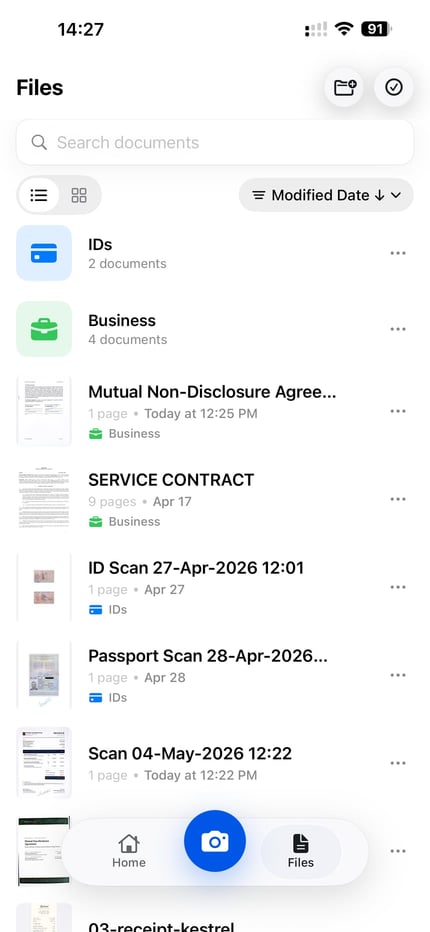
Search your library for a word from the document, then open the matching file and check that it is the copy you need.
Search does not replace structure — it forgives imperfections in it. Exports, backups, and shared copies travel without your app’s index, which is why names and folders still matter, and why documents that leave the archive are worth exporting as searchable PDFs so the text layer travels with the file. And if half your files today are photos with meaningless names, start by finding the scans you already have.
Attach retention to the record
Not every document should be kept forever. Add a review date or retention note to temporary records. Keep identity, ownership, executed legal, and irreplaceable family originals separately from routine statements and receipts.
For US tax records, the IRS recordkeeping page says the required period depends on the action, expense, or event and that records must support income and deductions. The FTC household guide provides a practical keep-and-shred framework, while noting that tax periods can be longer.
Use the original-retention checklist before discarding paper.
Back up the archive, not just the phone
Both the National Archives and CISA guidance describe the 3-2-1 rule: three copies, two storage types, and one copy off-site. A synchronized cloud folder can be one copy, but synchronization can also propagate deletion or corruption.
- Keep the working archive in a location you regularly use.
- Maintain a second copy on another service or local storage.
- Keep a third copy off-site or otherwise isolated from the same failure.
- Quarterly, restore a sample from each backup and open it.
- Annually, review old media and export formats before they become difficult to read.
The Library of Congress also recommends copies on different media in separate physical locations and migration to current storage over time.
Protect access without making recovery impossible
Limit access to sensitive folders, use device and account protections, enable multi-factor authentication where available, and avoid emailing unprotected identity or financial files without considering the path. Document where the archive lives and how an authorized family member or colleague can recover it in an emergency.
Security that only one person understands can become permanent loss. Keep recovery codes and instructions in an appropriately protected location separate from the primary device.
A schedule that keeps the system alive
- At capture: check page completeness and add the basic subject.
- Weekly: process the inbox and reconcile important receipts or statements.
- Monthly: confirm backups completed and review unexpected files.
- Quarterly: restore-test a sample.
- Annually: apply retention rules, update the inventory, and review emergency access.
Where ScanLens fits
ScanLens can capture documents on iPhone, recognize text on-device, and export common PDF or image files, and its iCloud backup can serve as one copy in the rotation. That covers convenience and the first failure; it is not a complete 3-2-1 plan by itself.
Use the paper digitization guide for capture and check the current App Store listing for product details.
Bottom line
A durable archive has five visible parts: inbox, names, folders, retention, and tested backups. Keep each simple enough to apply every week. If someone can find a file, understand it, restore it, and know whether to retain it, the system works.
